> For the complete documentation index, see [llms.txt](https://docs.brainboard.co/llms.txt). Markdown versions of documentation pages are available by appending `.md` to page URLs; this page is available as [Markdown](https://docs.brainboard.co/settings/overview.md).

# Overview

## Settings

Settings in Brainboard provides a flexible and hierarchical configuration system allowing you to manage settings at different levels of your organization.

### Overview

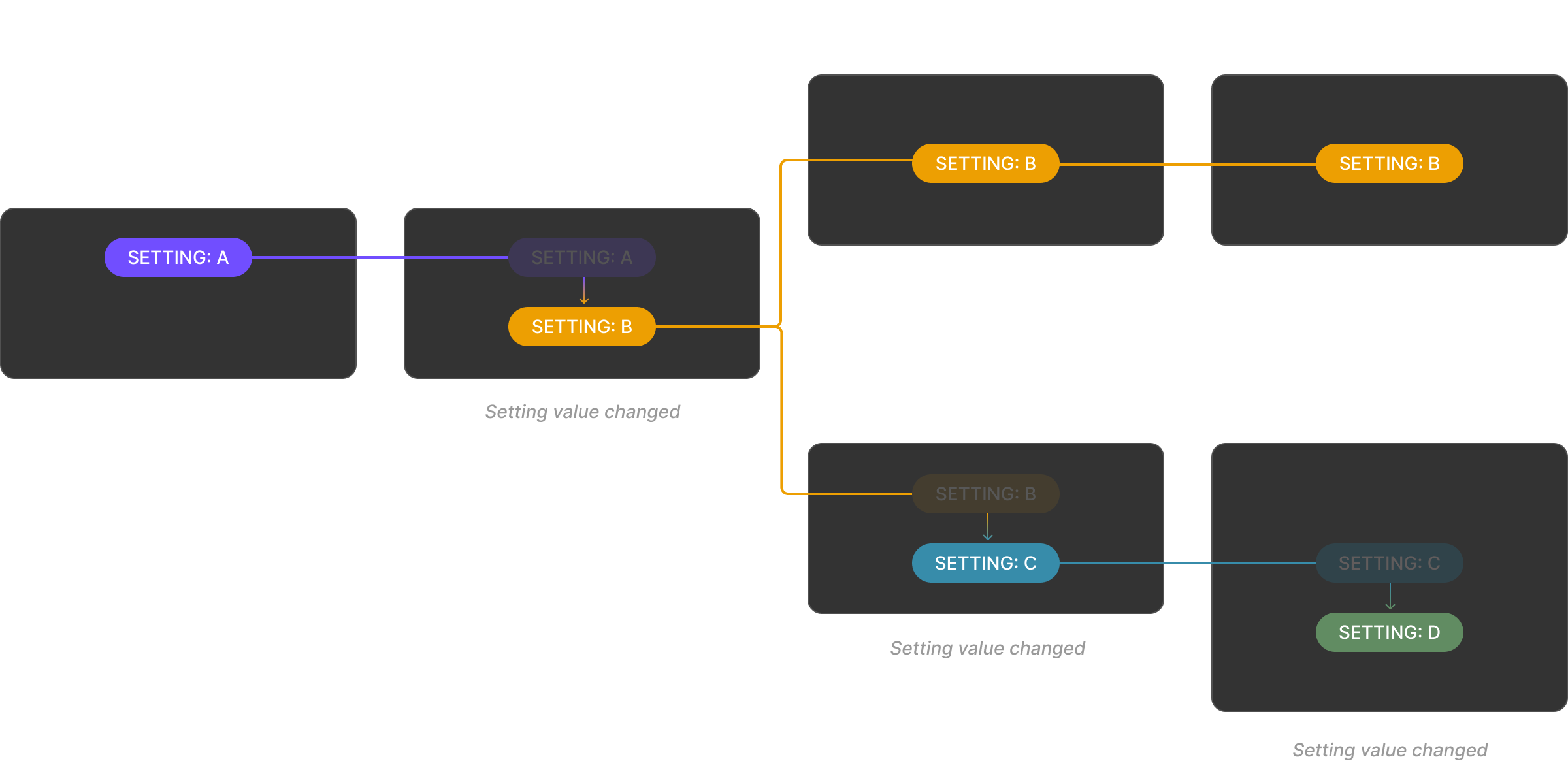
Settings in Brainboard are organized in a hierarchical structure that follows this inheritance pattern:

**Organization → Project → Environment → Architecture**

This hierarchical approach ensures that configurations that are shared across the hierarchy can be managed efficiently while allowing for specific overrides at any level when needed.

### Accessing Settings

#### Organization Settings

You can access Organization settings pages from the home page through the left navigation menu:

1. Go to the Home page (click on Brainboard logo in the top-left corner)
2. Click on the Settings icon in the left sidebar
3. Select Organization

#### Project Settings

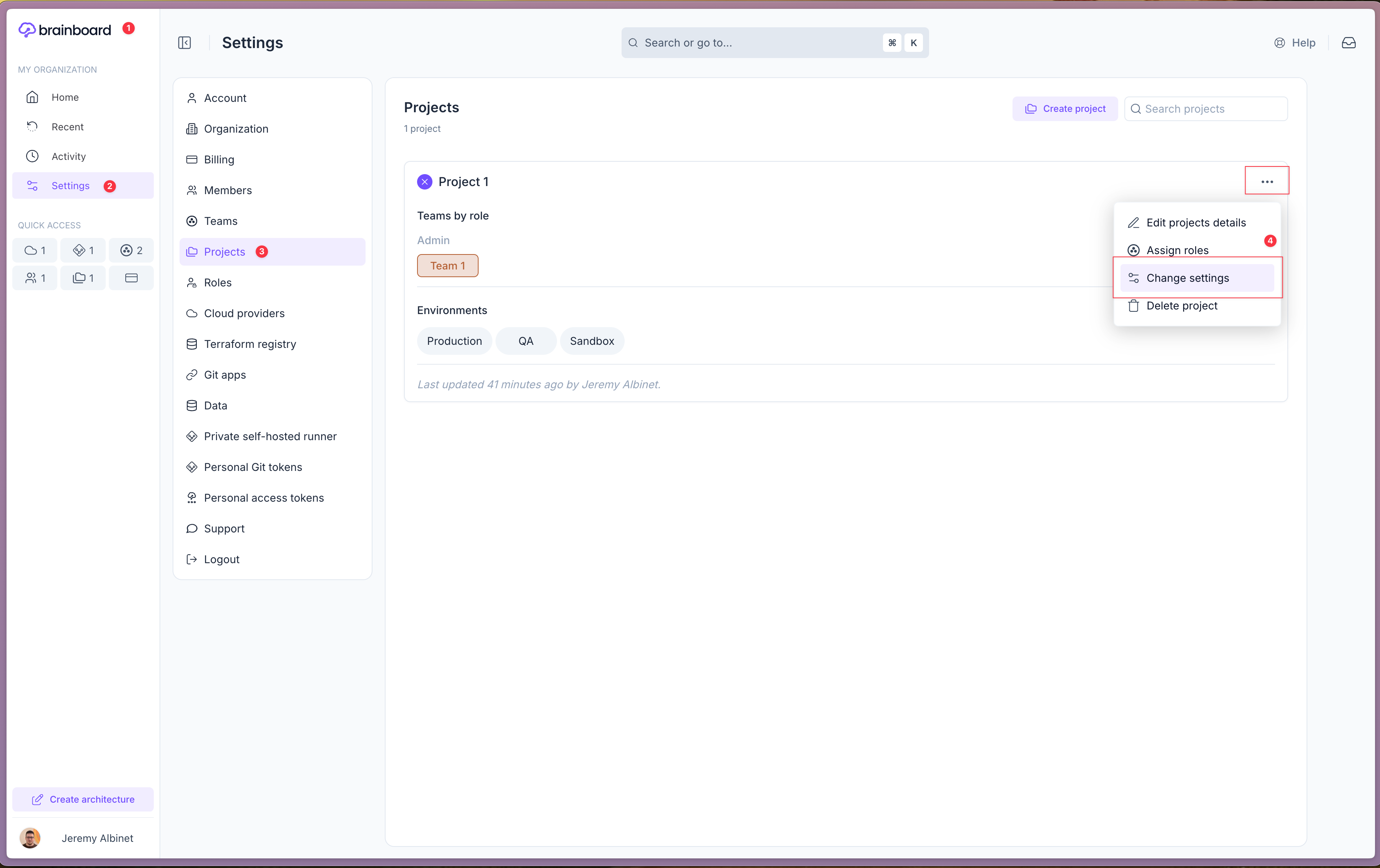
You can access Project settings pages from the home page through the left navigation menu:

1. Go to the Home page (click on Brainboard logo in the top-left corner)
2. Click on the Settings icon in the left sidebar
3. Click on Projects
4. Open the project menu using the 3-dots button, and click on "Change settings"

<figure><img src="/files/6UQDREPjTEZbefd2rXpP" alt=""><figcaption><p>Access Project settings page</p></figcaption></figure>

#### Environment Settings

You can access the Environment settings pages from the Project settings pages:

1. Access the Project settings following the instructions above
2. Click on an environment chip button from the environments list to access its specific settings

<figure><img src="/files/66aW8USl4asdtvRyDrz1" alt=""><figcaption><p>Access Environment settings page</p></figcaption></figure>

#### Architecture Settings

1. Open your architecture
2. Switch to the settings tab (using the tab selector in the middle of the topbar)

<figure><img src="/files/grx0HPCGgbOgfKY9DZJ7" alt=""><figcaption><p>Access Architecture settings page</p></figcaption></figure>

### Hierarchical Settings Management

#### Inheritance chain

Settings follow a clear inheritance structure:

1. **Organization Level**: The highest level, affects all projects, environments, and architectures.<br>

<figure><img src="/files/evYS2Kgx1Nf8KOYK6b00" alt=""><figcaption><p>Settings defined at organization level and not overridden at any lower level</p></figcaption></figure>

2. **Project Level**: Overrides organization settings for all environments and architectures within the project

<figure><img src="/files/ALiFS1DfJtrVTygPkEki" alt=""><figcaption><p>Setting defined at organization level being overridden at a project level</p></figcaption></figure>

3. **Environment Level**: Overrides organization and project settings for all architectures within the environment

<figure><img src="/files/nmcIp27G05fm6lL1lyNq" alt=""><figcaption><p>Setting defined at organization level being overridden at a project level and again at an environment level</p></figcaption></figure>

4. **Architecture Level**: The most specific level, overrides all higher-level settings for a particular architecture

<figure><img src="/files/nbqqQETbUXNhW8njb8SW" alt=""><figcaption><p>Setting defined at organization level being overridden at a project level , then overridden again at an environment level and finally at the architecture level</p></figcaption></figure>

#### Visual Indicators

When viewing settings at any level, you'll see visual indicators showing:

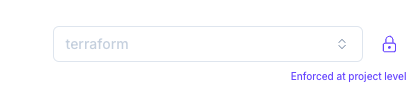
* When a setting is locked at higher level (with the source of the lock)<img src="/files/ytsFjj6q3k3LcQQFW5b2" alt="" data-size="original">
* When a setting is overridden at your level (the reset button shows that the value is set at this level)\ <img src="/files/f52BzxJuiJcgAasKien9" alt="" data-size="original">
* When a setting is locked at your level preventing any lower levels update\ <img src="/files/kqErR5YenrFdI4DSbPDg" alt="" data-size="original">